Logic Creation
The Logic tab is where you build the simulation engine that drives a chained Scenario or Simulation: Actions that execute, and Events that decide what runs next. This page details how to build and validate that graph.
What is the Logic graph?
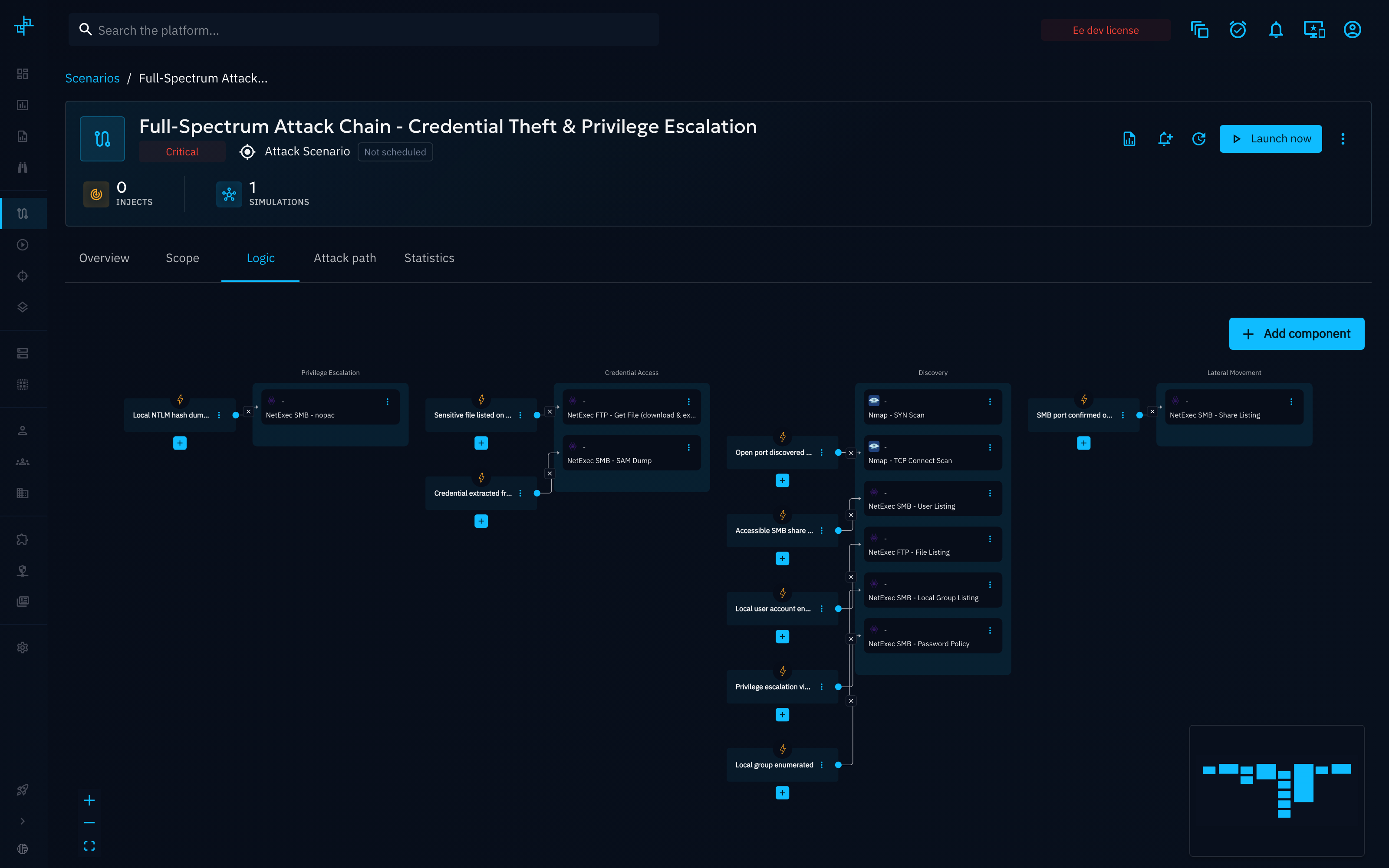
The Logic graph is made of two building blocks, laid out on a visual canvas:
- Action: executes a Threat Arsenal action with the parameters you configure. Represented as a square node.
- Event: a set of conditions or condition groups, combined with AND/OR, evaluated against the data produced by Actions or Variables. When its conditions are satisfied, it triggers the Actions connected to it.
The chain is formed only in one direction: an Event triggers the Action(s) it is linked to. There is no link the other way — an Action never connects directly to an Event. Instead, when an Action finishes, its outputs are recorded, and every Event evaluates its conditions against the recorded data; if an Event's conditions are satisfied, it triggers the Action(s) it is linked to. Nothing runs until its upstream Event's conditions are met.
Why use it?
- Fully customize your run's behavior: the Logic graph is your own Chaining Engine definition for this Scenario or Simulation — however you define it is exactly how the run will behave, letting you customize it to your own attack narrative.
- Branch on real outcomes: trigger the next step only when the previous one actually produced the expected result, instead of always running every Inject.
- Compose complex attack trees: combine multiple conditions (AND/OR, nested groups) to model precise decision points.
- Reuse data across steps: link an Action's argument to the output of a previous Action or to a scope Variable, instead of hardcoding values.
- Catch mistakes early: the canvas warns you inline when an Event references data that no Action currently produces.
How do I do it?
Add an Action
- Click Add component, then choose Action ("Execute an injector contract with configured parameters").
- Select a Threat Arsenal action from the catalog, configure its arguments (optionally linking any of them to a scope Variable or to another Action's output), and save — see Action Selection for the full walkthrough, including how to filter the catalog and how local vs. global linking works.
- The Action appears as a node on the canvas.
Add an Event
- Click Add component, then choose Event ("Define conditions to trigger the next actions").
- Name the Event and, optionally, describe it.
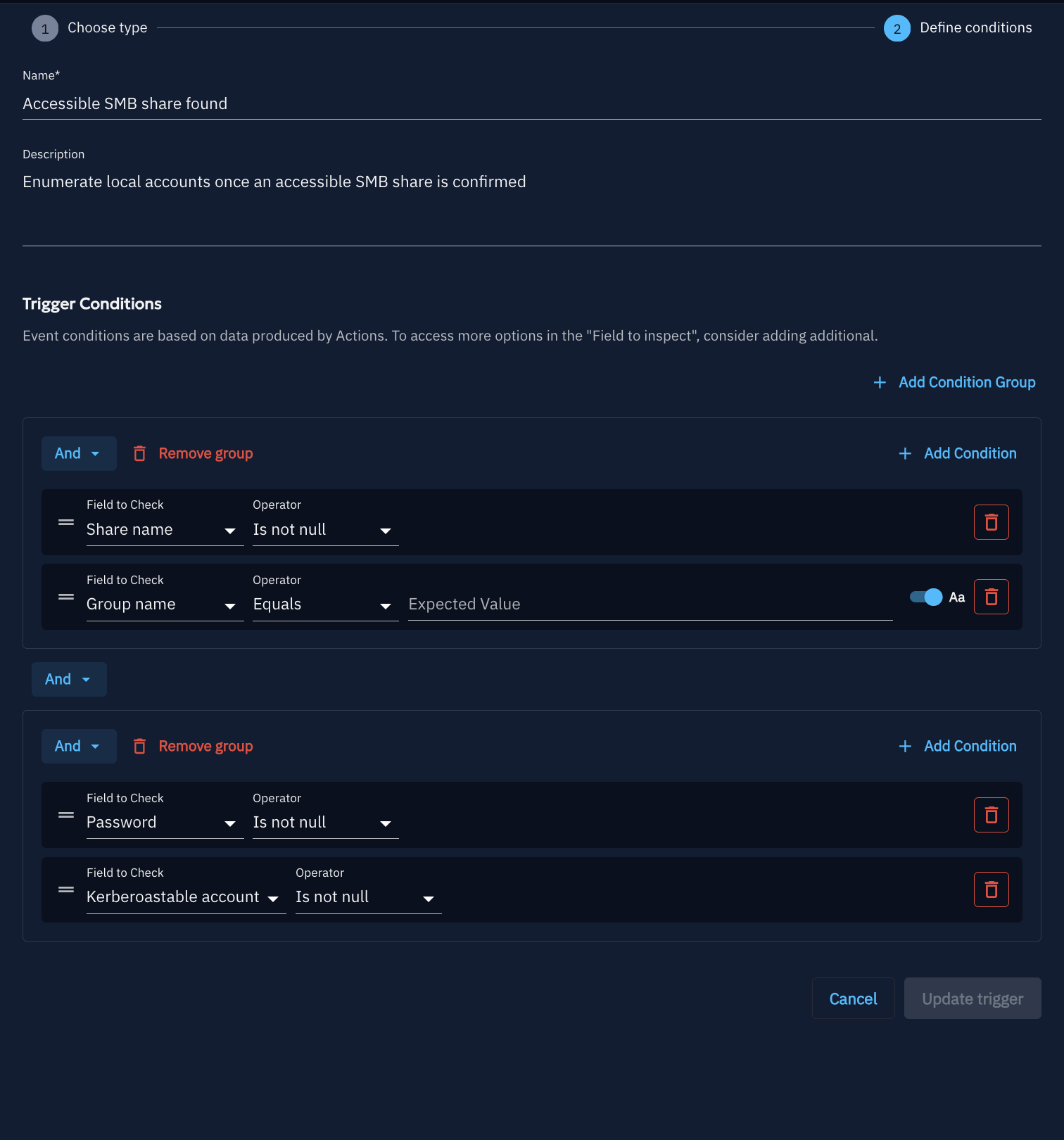
- Build one or more Condition groups. A group holds a list of individual conditions plus, optionally, nested
sub-groups, and always has its own AND / OR operator:
- AND requires every condition (and every nested sub-group) in that group to be true.
- OR requires at least one of them to be true.
-
Nesting a sub-group inside a group lets you mix logic — for example, an outer
ORbetween two innerANDgroups models "(A and B) or (C and D)". Each condition inside a group sets:-
Field to Check: the output field to inspect. The list of available fields is not a fixed set — it is built dynamically from the Threat Arsenal's argument types (execution status, Expectation results, and any data field an Action can produce, such as a discovered port, username, or CVE). Each option shows a tooltip listing which Action(s) already on the canvas actually produce that field, to help you pick a field that is provisioned.
-
Operator: how the field is compared with the expected value: equality, presence (
Is null),Containsto match one of several comma-separated values, and greater/less than on numeric fields such as a port. - Expected value (not needed for presence checks): it must fit the field, for example a number for a port or a valid IP address or CVE id, otherwise the form shows an error. A toggle makes text comparisons case-sensitive.
- Save, then connect the Event to the Action(s) it should trigger.
-
Note
If the value you need isn't in the Field to Check list, use the Action Output field type instead: it
covers the raw CLI output of any Action on the canvas. Combined with the Contains operator, this lets you
check whether a specific keyword or value shows up anywhere in an Action's output, even if that output isn't
exposed as a dedicated field.
Note
Linking an Action's argument to a scope Variable or to another Action's output — and choosing whether that link reads from global or local scope — is covered in Action Selection.
Validate your graph
You can define an Event whose condition references a field that no Action currently on the canvas actually
produces — for example, an Event checking a Port field when no Action on the graph reports a port. In that case,
the platform can't guarantee the Event will ever trigger, so it shows a warning banner listing each affected Event,
the missing field, and an Add Compatible Action shortcut that lets you add an Action known to produce that
field directly from the banner.
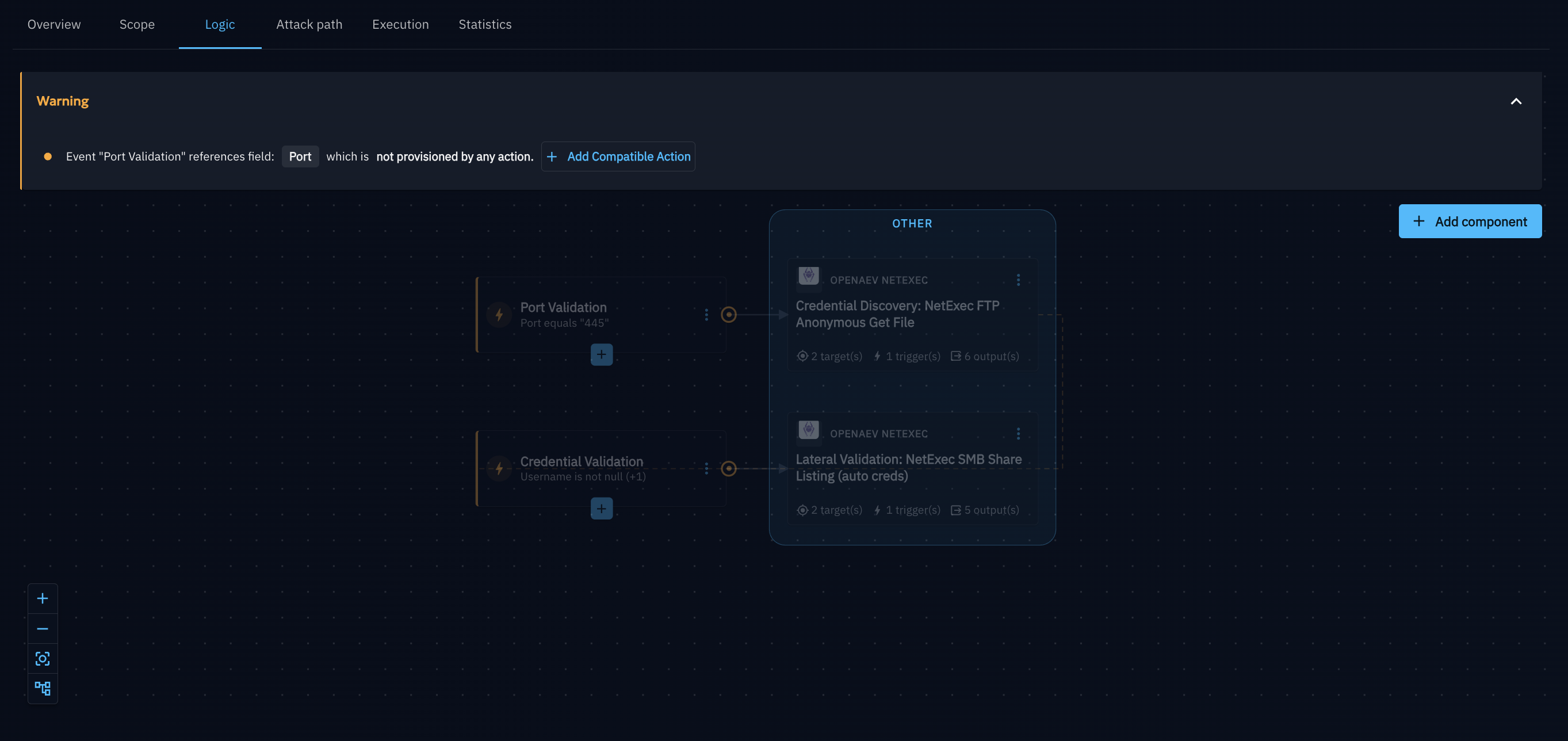
Clicking Add Compatible Action opens the same Add actions panel used for adding any Action to the canvas,
but pre-filtered with a Providing filter set to the missing field (for example group_name), so only Actions
from the Threat Arsenal that actually produce that field are listed:
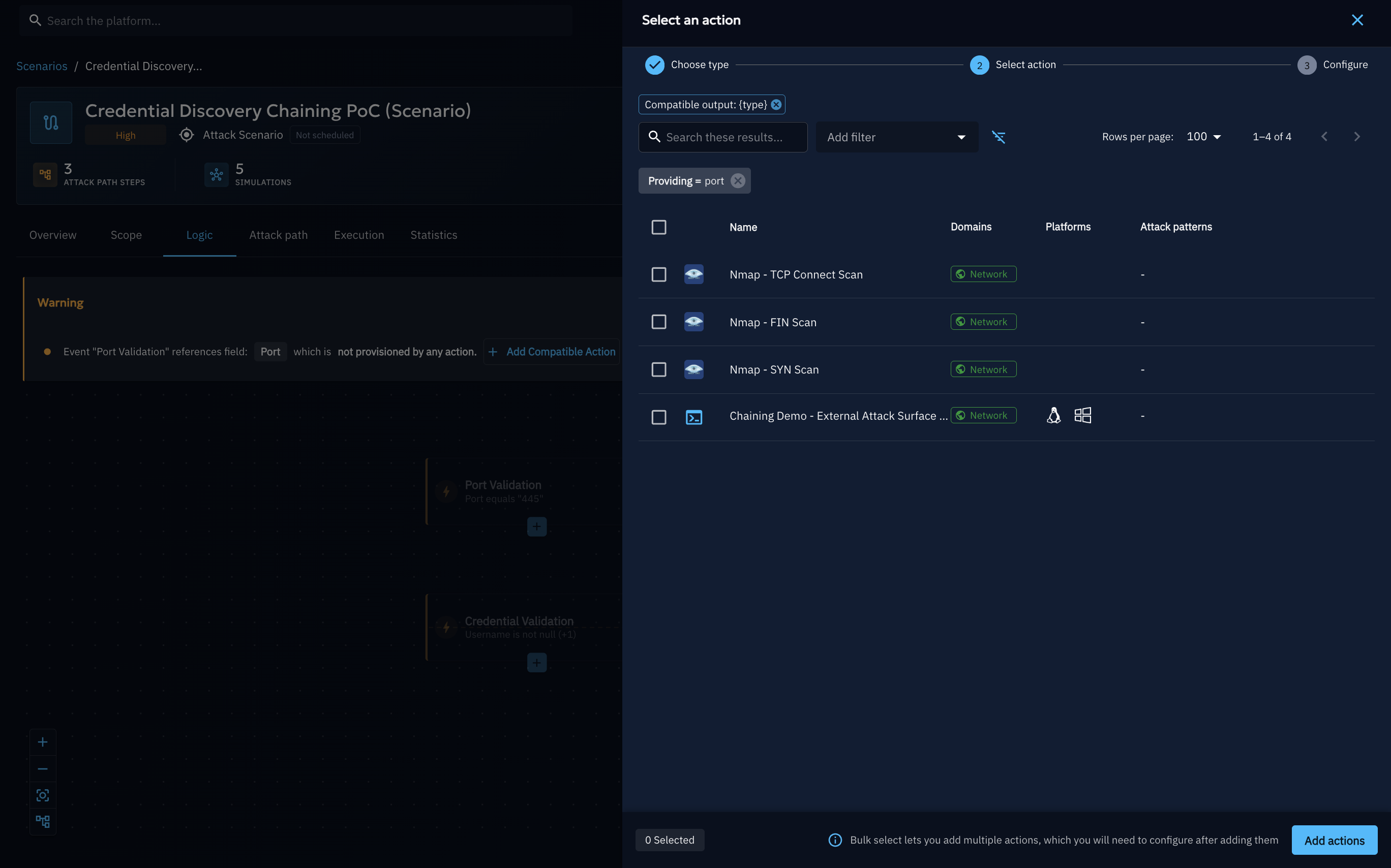
Selecting one or more Actions and clicking Add actions drops them onto the canvas as new, unconnected Action nodes — it does not automatically wire them into the graph. You still need to connect the new Action(s) to the Event yourself (and to any upstream Action(s) they should depend on) for the warning to clear, since the platform only confirms the field is available on the canvas, not that it is actually wired into that Event's condition.
Reading the links between components
Once your graph has Actions and Events connected, click an Event to inspect it: the canvas draws two different kinds of links to help you trace how data flows into it.
- Solid links: the real, saved connections — always an Event triggering the Action(s) it is linked to. This is the only kind of link the Chaining Engine actually executes; there is never a saved link running from an Action to an Event.
- Dotted (orange) links: informational only, never saved, and never a real connection. When an Event is selected, the canvas draws a dotted link from every Action that currently produces one of the fields used in that Event's conditions, even if that Action is not connected to the Event at all. This is just a visual hint — "this Action's output could satisfy this Event's condition" — to help you see, at a glance, which Actions already on the canvas could feed data into the selected Event's conditions; the same relationship is surfaced by the per-field tooltips in the condition builder.
Selecting an Event also dims every Action and Event outside its data-flow path, so the provider Actions, the Event itself, and the Action(s) it triggers stand out clearly against the rest of the graph.
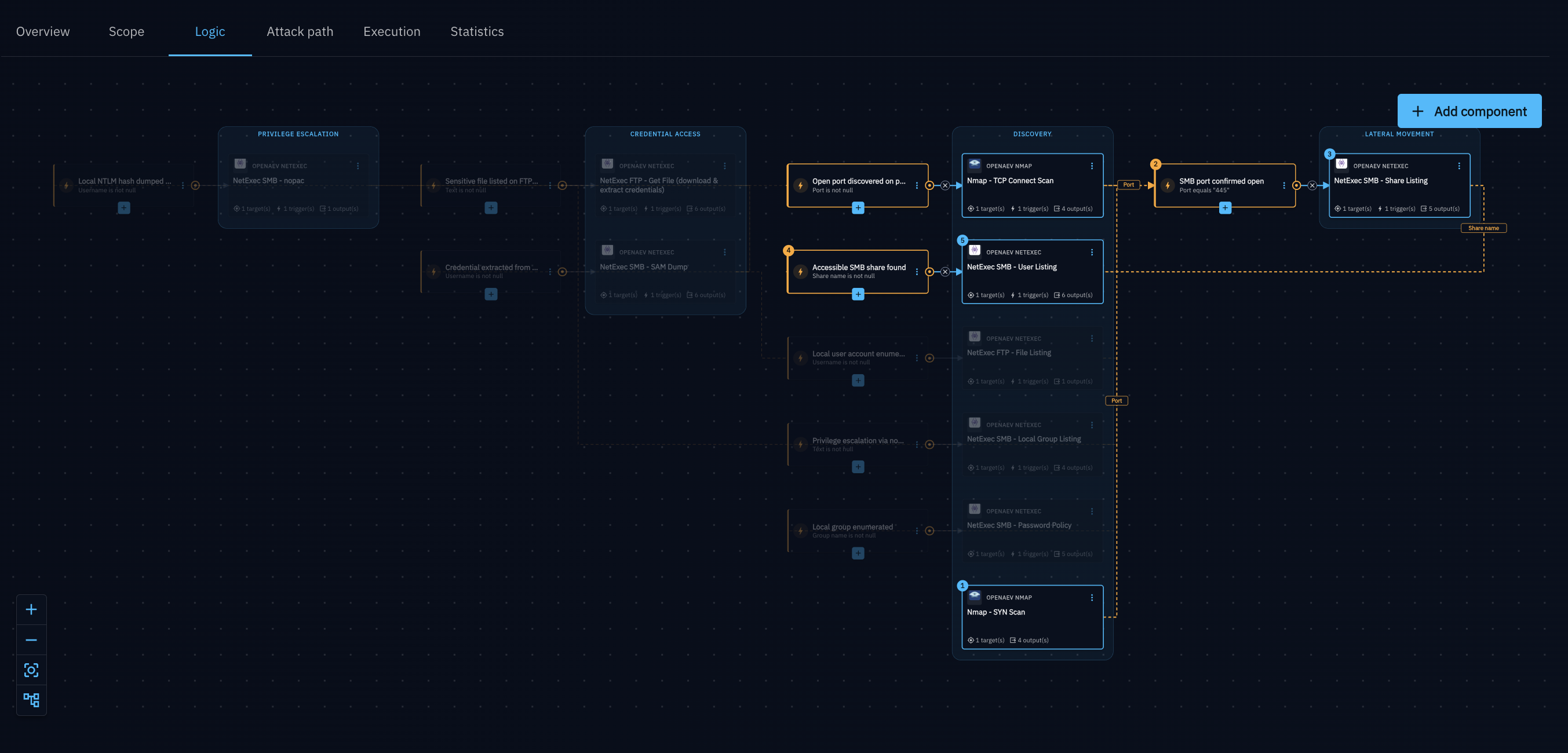
Example: chaining a credential discovery attack
Here is a real Logic graph, built with the steps above, that chains a port scan into a credential discovery attempt, then reuses the harvested credentials for lateral validation:
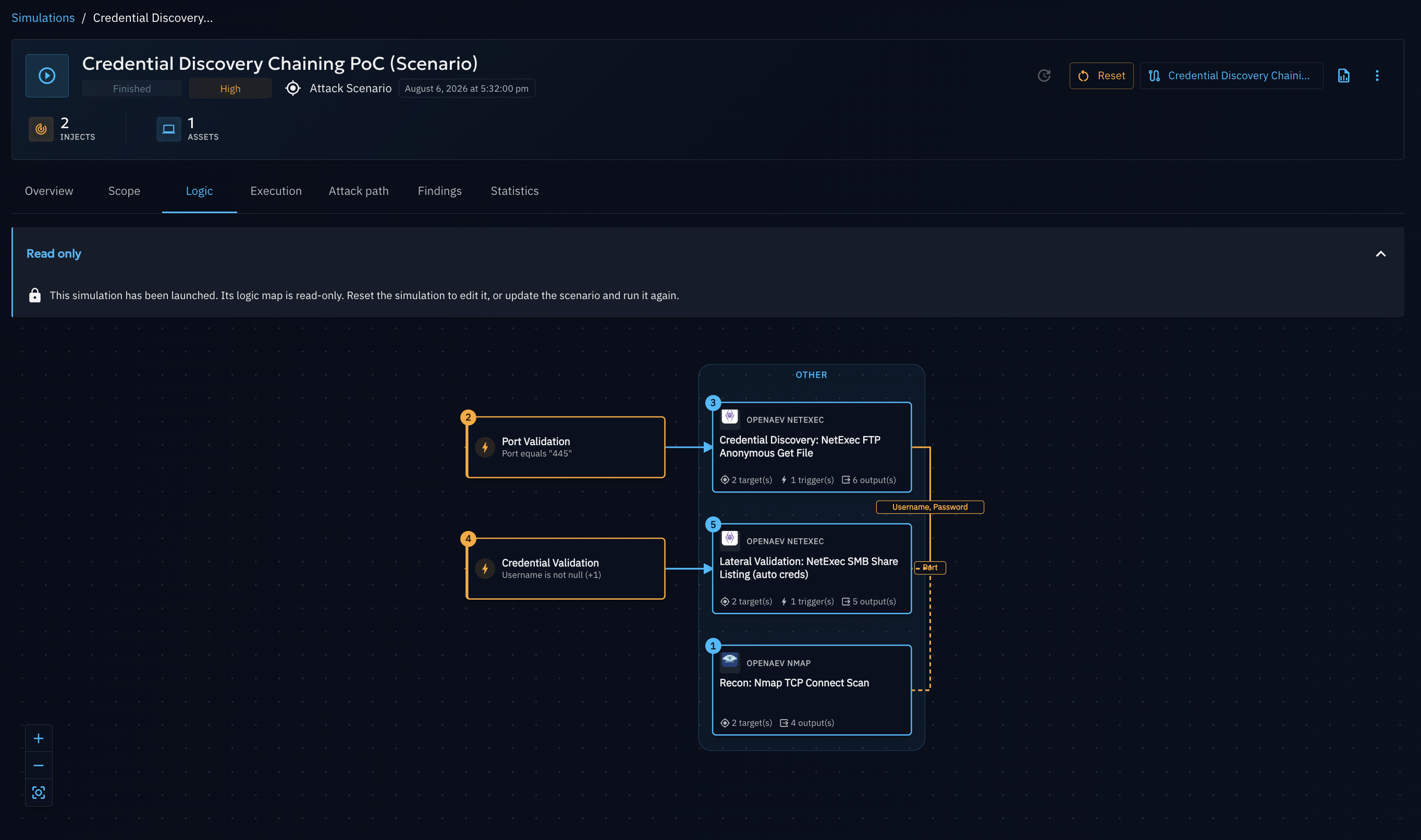
- Recon:
Nmap TCP Connect Scanprobes the target Asset. - Event "Port Validation": triggers once the scan reports a non-null port, confirming a service is reachable.
- Credential Discovery:
NetExec FTP Anonymous Get Fileattempts to retrieve a file over an anonymous FTP session, which may expose credentials. - Event "Credential Validation": triggers once that step's output actually contains a credential.
- Lateral Validation:
NetExec SMB Share Listing (auto creds)reuses that credential to list SMB shares on the target, validating whether it grants further access.
If Step 1 finds no open port, or the credential discovery step doesn't return a credential, the downstream Action is never triggered — each Action only runs once the previous stage's output actually satisfies the Event's condition.
What's next?
- Attack Path Map: see how the chain propagated across your Assets, and review the run's results, once it executes.
- Scope Definition: restrict targets and define reusable Variables.
- Attack Chaining overview: back to the feature hub.