Notifications & Triggers
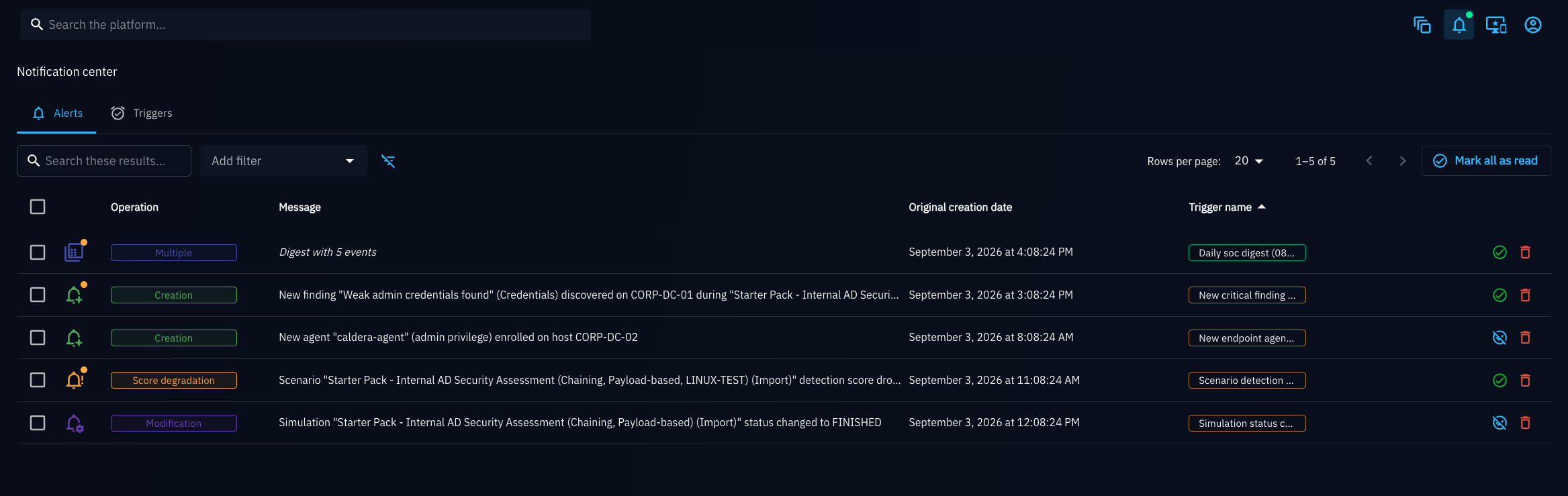
OpenAEV keeps you informed about what happens on the platform without requiring you to constantly check every Scenario, Simulation, or Asset yourself. A single bell icon in the top navigation bar gives you access to this system: it opens the Notification Center, a two-tab page with an Alerts tab, where you review what happened, and a Triggers tab, where you define what you want to be notified about, and how. The bell stays highlighted while either tab is open.
What Are Notifications & Triggers?
- A Trigger is a rule you configure: "notify me when this kind of event happens on this kind of resource". It watches one Resource type (Scenario, Simulation, Inject, Finding, Asset, and more), one or more Event types (creation, modification, deletion), and sends matching alerts through one or more Notifiers (in-app, Email, or Webhook).
- A Notification is what a Trigger produces once its conditions are met. Every Notification lands in the Notification Center's Alerts tab, accessible from the bell icon, in addition to being pushed to whichever Notifier(s) the Trigger uses.
Triggers come in two flavors:
- Live: fires immediately, once per matching event.
- Digest: rolls up one or more Live Triggers into a single periodic summary (hourly, daily, weekly, or monthly), so you get one email or webhook call instead of a flood of individual ones.
Why Use Them?
- Stay informed without polling: get alerted the moment a Scenario's score degrades, an Asset is created, or a Finding is deleted, instead of manually revisiting pages to check for changes.
- Control the noise: choose Live for time-sensitive events, or bundle several Live Triggers into a Digest when you only need a periodic summary.
- Route alerts where you work: send Notifications to the in-app Notification Center, to your Email, or to an external system through a Webhook Notifier.
- Subscribe in one click: use the quick-subscribe bell on a Scenario's page when you only care about that single Scenario, without configuring Resource type, Event types, or filters yourself.
How Do I Do It?
- Open the Notification Center (bell icon in the top navigation bar) and select the Triggers tab to create a Live or Digest Trigger, or click the subscribe bell in a Scenario's header for a one-click Trigger scoped to that Scenario. See Triggers for the full walkthrough.
- Select the Alerts tab to review incoming Notifications, jump to the entity that triggered one, and manage them (mark as read, delete, bulk actions). See Notification Center for details.
What's Next?
- Triggers -- Create and manage Live and Digest Triggers, and quick-subscribe to a Scenario
- Notification Center -- Review, filter, and manage the Notifications you receive