Triggers
The Triggers tab of the Notification Center defines what you get notified about, and how. This page details how to create, configure, and manage Triggers, including the quick-subscribe shortcut available on a Scenario's page.
What Is a Trigger?
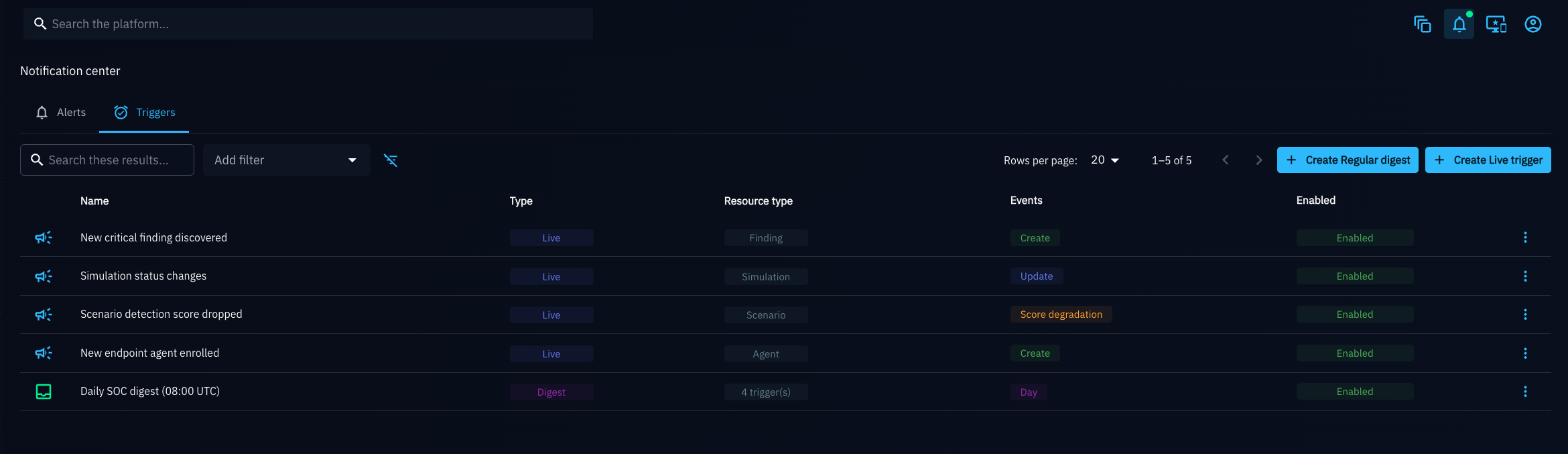
A Trigger is a personal rule owned by the user who created it: it watches for events on a Resource type and sends matching Notifications through one or more Notifiers. Every Trigger is one of two types:
- Live: fires immediately for every matching event on the Resource type you selected, optionally narrowed down by Filters.
- Digest: does not watch a Resource type directly. Instead, it composes one or more of your existing Live Triggers and rolls up everything they would have fired into a single periodic summary: hourly, daily, weekly (on a chosen day), or monthly (on a chosen day of month, at a chosen time in UTC).
Both types share the same two remaining settings:
- Notifiers: where the Notification is sent (the built-in in-app Notifier, an Email Notifier, or a Webhook Notifier). Notifiers are configured by an administrator in Settings > Customization > Notifiers; only Notifiers that already exist there appear in this list.
- Enabled: a Trigger can be disabled without deleting it, to pause it temporarily.
Why Use It?
- Watch exactly what matters to you: pick a Resource type, narrow it down with Filters, and choose only the Event types you care about.
- Avoid alert fatigue: compose several Live Triggers into a single Digest so you get one periodic summary instead of many individual Notifications.
- Reuse existing Notifiers: send to Email or Webhook without having to configure delivery details on every Trigger yourself.
- Subscribe in a single click: use the quick-subscribe bell on a Scenario's own page when you only need an all-events subscription on that exact Scenario.
How Do I Do It?
Create a Live Trigger
- Open the Notification Center (bell icon in the top navigation bar) and select the Triggers tab.
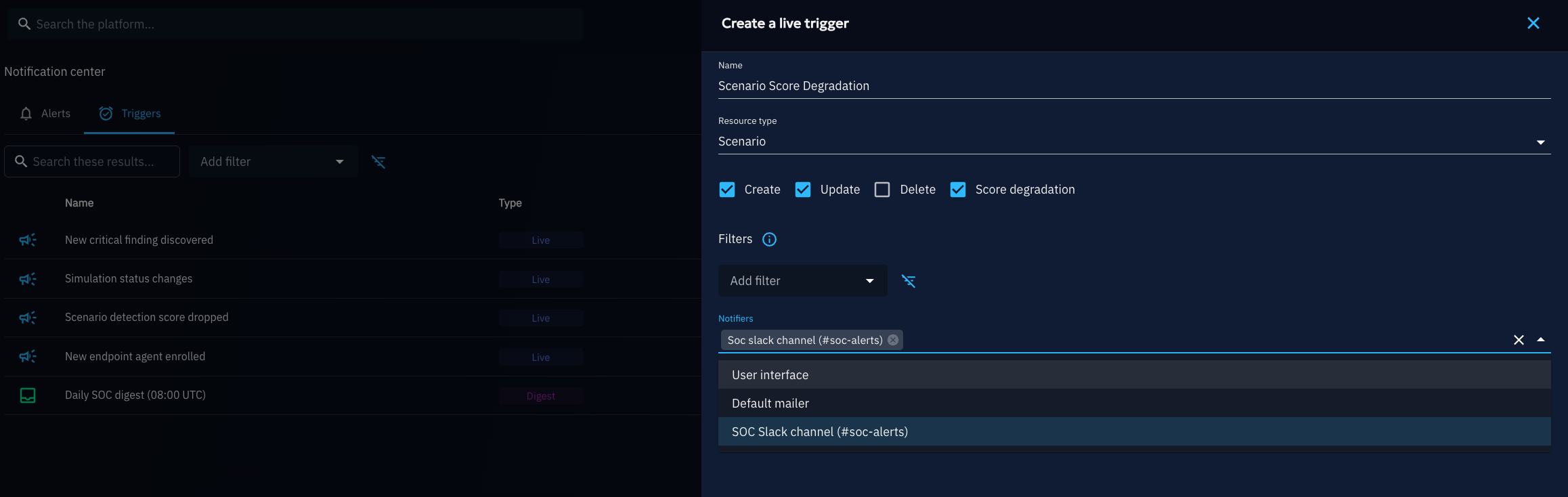
- Click Create Live trigger.
- Name the Trigger.
- Select a Resource type: Scenario, Simulation, Inject, Finding, Asset, Asset group, Team, Player, Payload, Vulnerability, Security platform, Document, or Challenge.
- Select one or more Event types: Create, Update, Delete. For the Scenario Resource type, a fourth option, Score degradation, is also available: it fires when a Simulation's score drops below the score of the previous run for the same Scenario.
- Optionally, add Filters to only match entities that satisfy specific conditions (for example, a Simulation filtered to a specific Tag). Leave the filters empty to match every entity of the selected Resource type.
- Select one or more Notifiers.
- Confirm.
Create a Digest Trigger
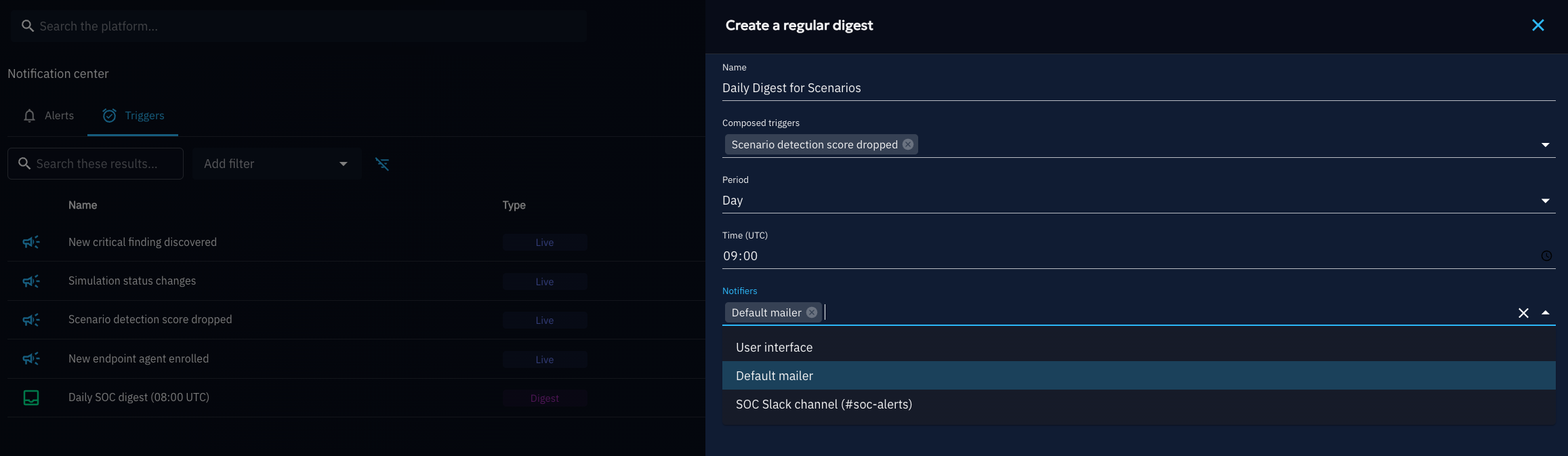
- From the Triggers tab of the Notification Center, click Create Regular digest.
- Name the Trigger.
- Select the Composed triggers: one or more of your existing Live Triggers to roll up.
- Select a Period: Hour, Day, Week, or Month. Week and Month additionally ask for a day (day of the week, or day of the month), and every period except Hour asks for a time, in UTC.
- Select one or more Notifiers.
- Confirm.
Note
A Digest can only compose Live Triggers. Digests cannot be nested inside one another.
Manage a Trigger
From the Triggers list, use the row's action menu to:
- Update: reopen the same form used at creation, prefilled with the current values.
- Enable / Disable: pause or resume a Trigger without deleting it.
- Delete: permanently remove the Trigger.
Quick-Subscribe From a Scenario's Page
A Scenario's page shows a subscribe bell in its header, next to the Scenario's name.
- Open the Scenario you want to watch.
- Click the bell icon in its header. This immediately creates a Live Trigger scoped to that exact Scenario, watching every Event type (Create, Update, Delete, and Score degradation), sent to the built-in in-app Notifier. The bell turns green to confirm the subscription.
- Click the green bell again to reopen the same Trigger in an edit drawer, for example, to add an Email Notifier, or to unsubscribe with the Delete button.
Tip
Use the quick-subscribe bell when you only need an all-events, in-app subscription on one specific Scenario. Use the Triggers page for any other Resource type, for Filters, for specific Event types, or for a Digest.
Example: Watching a Simulation's Score and Getting a Weekly Summary
Imagine you run weekly Simulations against the same Scenario and want an immediate alert if the score regresses, plus a weekly summary of every change across your Scenarios and Simulations.
- Live trigger: score regressions: create a Live Trigger named
Score regressions, Resource type Scenario, Event type Score degradation only, no Filters, Notifier set to Email. You now get an Email the moment any Simulation run scores lower than the previous run of the same Scenario. - Live trigger: simulation activity: create a second Live Trigger named
Simulation activity, Resource type Simulation, Event types Create and Update, Notifier set to the built-in in-app Notifier. - Digest: weekly summary: create a Digest Trigger named
Weekly summary, composing bothScore regressionsandSimulation activity, Period Week, day Monday, time09:00, Notifier set to Email.
You now get an immediate Email whenever a score regresses, plus a single Monday morning Email summarizing every Simulation created, updated, or scored lower that week, instead of one Email per individual event.
What's Next?
- Notification Center -- Review, filter, and manage the Notifications a Trigger produces
- Notifications & Triggers overview -- Back to the feature hub