OpenAEV agent overview
Introduction
The OpenAEV Agent is an application whose primary role is to enroll an Asset on the OpenAEV platform, retrieve jobs or scripts to be executed, and transmit this information to Implants for execution on the host Asset.
The Agent does not perform direct actions on the Asset itself, in order to remain neutral with respect to antivirus solutions and ensure the full execution of Simulations.
The OpenAEV Agent is compatible with multiple operating systems (Windows, Linux, macOS) and is developed in Rust.
Why use the OpenAEV Agent?
- Deploy a lightweight, open-source Executor on your endpoints without depending on third-party agents.
- Stay neutral to antivirus solutions — the Agent itself performs no attack actions, so it does not trigger detections.
- Support multiple installation modes (session, user service, system service) to match different privilege and persistence requirements.
- Enable automatic upgrades and health checks with minimal operational overhead.
Installation
Depending on the operating system, several installation modes are available. You can access them from OpenAEV with the Install simulation agents icon in the top bar:
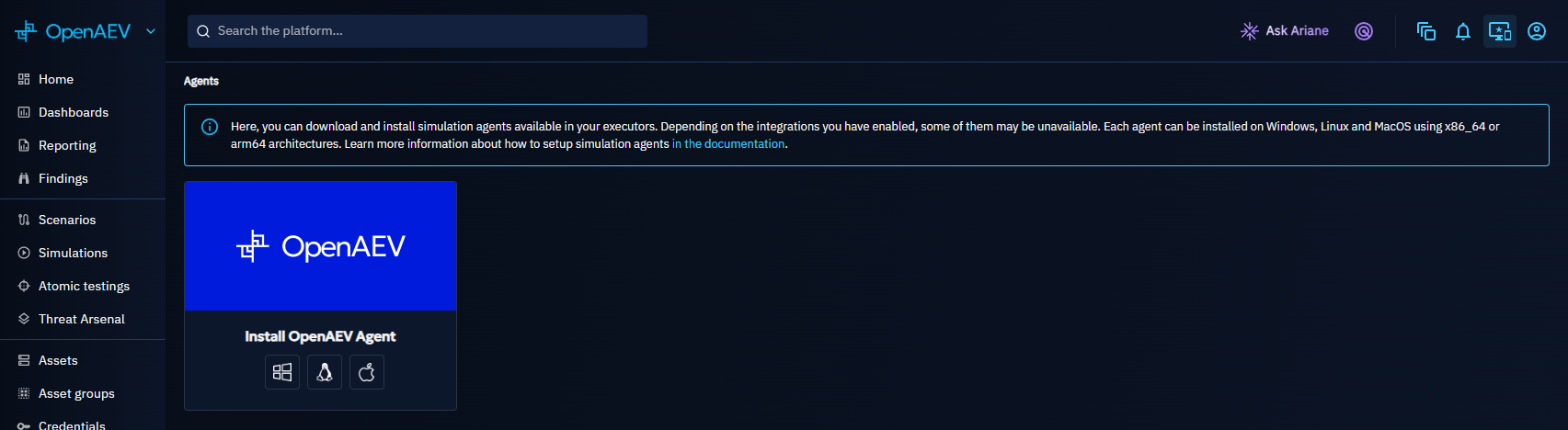
To remove an agent, see Uninstall an agent.
Warning
Antivirus exclusions described in this documentation are mandatory for OpenAEV to function correctly.
Exclusions must apply only to the runtimes subfolder.
Threat Arsenal Actions are intentionally stored elsewhere so that detection and blocking remain possible when relevant.
Required capability
Installing an agent from OpenAEV requires the Install agent capability, which can be granted in Settings > Security > Roles (see Users and RBAC).
Users who do not have it cannot get the install command from the Install simulation agents page.
Multiple agents on the same machine
Since agent release 1.14, you can install several OpenAEV agents on the same machine, to test different execution contexts and privilege levels. For example:
- install two agents with the standard installation, one as a standard user and one as an administrator;
- add a standard installation next to an advanced system installation, to compare filesystem access, environment variables and privileges.
The installation modes available on each OS are described below.
Quick compatibility check
Before installing the OpenAEV Agent, ensure that all the following conditions are met:
-
Supported CPU architecture: x64 or ARM64 only
-
Supported service manager:
- Windows: Service Control Manager
- Linux: systemd
- macOS: launchd
-
Security requirements:
- TLS 1.2 or higher
- Administrative privileges (Administrator / root / sudo) for the advanced (service) installations
-
Network access:
- Outbound connectivity to the OpenAEV instance
If any of these requirements are not met, installation will fail or behave unpredictably.
Best effort support
“Best effort” support means that the OpenAEV Agent may work, but:
- the environment is not officially validated,
- stability and long-term support are not guaranteed,
- additional configuration may be required,
- environment-specific issues may not be prioritized.
Install on your OS
The requirements and installation modes depend on the OS:
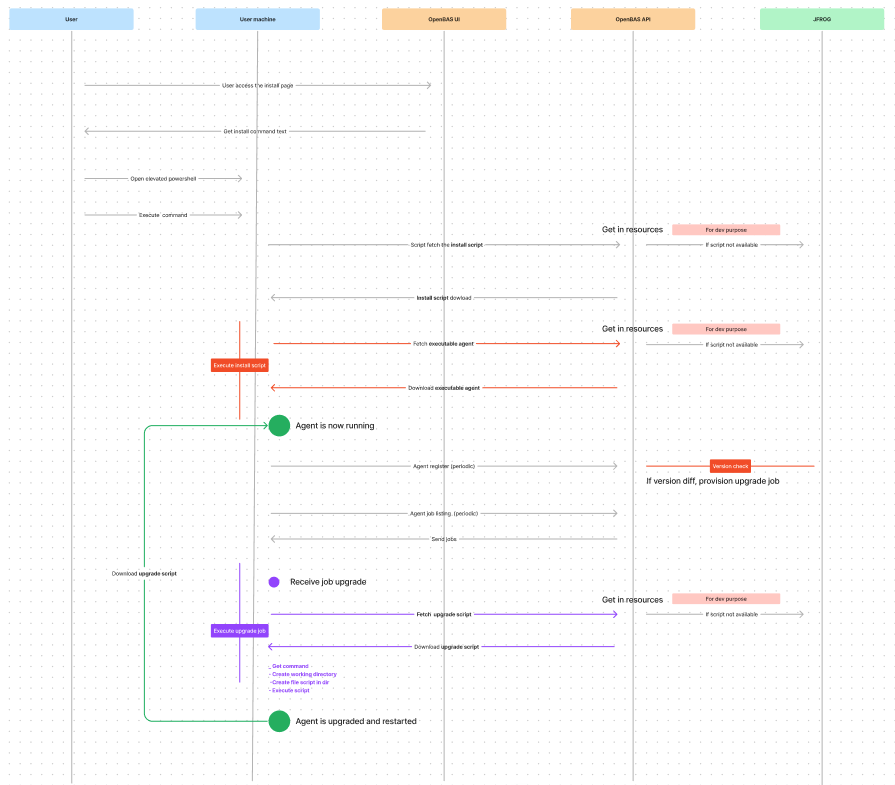
Agent installation flow
Proxy configuration
To use a proxy with the OpenAEV Agent, define both HTTP_PROXY and HTTPS_PROXY before running the installer.
You can configure them in either of the following ways:
- Machine-wide (persistent): set them as system environment variables so they are available globally.
- Session-only (temporary): set/export them in the same terminal session immediately before executing the installation script.
If the agent is installed as a service, make sure these variables are also available to the service account.
The agent uses these variables only if the platform has openaev.with-proxy set to true (see
Configuration) when you copy the install command. Otherwise, the agent ignores the proxy.
Uninstall an agent
The uninstall commands depend on the OS and the installation mode: see Windows, Linux or macOS.
Remove the Endpoint from OpenAEV
Uninstalling the agent does not remove the Endpoint from OpenAEV. A running agent registers again every two minutes and recreates it, so uninstall the agent first.
- Go to Assets > Endpoints.
- Open the ellipsis menu of the Endpoint and click Delete.
You need the Delete Assets capability.
Features
The main features of the OpenAEV Agent include:
- Agent registration on the OpenAEV platform
- Automatic agent upgrade (on startup and registration)
- Periodic job retrieval (every 30 seconds)
- Implant lifecycle management
- Execution cleanup in
runtimesandpayloads(see Cleanup configuration) - Health checks (heartbeat every 2 minutes)
Cleanup configuration
The garbage collector thresholds can be customized in the agent's openaev-agent-config.toml file:
| Parameter | Description | Default value |
|---|---|---|
executing_max_time_minutes |
Maximum time (in minutes) an execution-* directory can exist before processes are killed and the directory is renamed to executed-* |
10 |
directory_max_time_minutes |
Maximum time (in minutes) an executed-* directory can exist before it is permanently deleted |
10 |
cleanup_interval_seconds |
Interval (in seconds) between cleanup cycles | 180 |
Example configuration in openaev-agent-config.toml:
[cleanup]
executing_max_time_minutes = 10
directory_max_time_minutes = 10
cleanup_interval_seconds = 180
Security
Agent token scope and privilege isolation
OpenAEV enforces strict segregation of duties for agent token authentication.
The agent token has a deliberately narrow scope: it is only permitted to retrieve jobs to execute, retrieve documents, send back results, and download the agent installer. It cannot be used to perform any administrative action or access any resource outside of that execution flow.
This token belongs to the service account of the Tenant, which has the Service integration Role. With it, the agent and its Implants download a Document only by its exact ID, for example the file of a File Drop or Executable Action. They cannot list or search Documents.
Signed agents
Every OpenAEV Agent executable (the agent binaries and the Windows installers) is signed when its release is published. The installer and upgrade scripts verify this signature before they install or replace anything, so a tampered or corrupted download is rejected.
How it works:
- At release time, each executable receives a
.sigfile: the base64 RSA/SHA-256 signature of its bytes. - When the agent is downloaded from OpenAEV, the platform returns the signature in the
X-Signature-Sha256-Rsaresponse header, and the release version in theX-Release-Versionheader. - The installer script checks the signature against the 4096-bit RSA public key embedded in the script. It refuses to install if the signature is missing or invalid.
- The version header lets the scripts refuse a downgrade to an older release.
Warning
On Linux and macOS, the installer stops with an explicit error if openssl is missing. Install it with your package
manager (for example apt install openssl on Debian and Ubuntu) before running the installation command.
Note
Only the agent executables are signed. Scripts and implants are not signed for now.
Rotating the installer token
The Install agent capability only grants read access: it lets a user fetch the install command and installer token, but not rotate or revoke them. If the token is suspected to have leaked, rotate it:
Rotating the token requires the Manage tenant users, groups and roles capability (see Users and RBAC), since the installer token belongs to the tenant's service account rather than to an individual user.
Warning
Rotation immediately invalidates the token used by every already-installed Agent in the tenant. Reinstall or reconfigure those Agents with a fresh install command after rotating.
Troubleshooting
Logs are in openaev-agent.log in the installation folder.
When an implant is deployed, a new directory execution-<job ID> is created under runtimes.
This directory contains:
- The implant executable
- Execution-specific logs
Agent installed but not visible
The agent registers when it starts, then every two minutes. If its Endpoint does not appear in Assets > Endpoints, check the following points:
- The agent runs. Use the commands of the Verification/Start/Stop agent column for your installation mode, on the Windows, Linux or macOS page.
- The log shows no registration error. Open
openaev-agent.login the installation folder and look forFail registering the agent, followed by the cause. - The URL is reachable. The
urlvalue inopenaev-agent-config.toml(installation folder) comes fromopenaev.agent-url, oropenaev.base-urlwhen it is not set (see Configuration). The endpoint must reach this URL. If it is wrong, fix the platform setting and install again with a new command. - You look in the right Tenant. The
tokenandtenant_idvalues come from the Tenant you were in when you copied the install command. The Endpoint appears in this Tenant only. - The certificate is trusted. If the endpoint does not trust the platform certificate (for example a self-signed
one), set
openaev.unsecured-certificatetotrueon the platform, then install again. - The proxy is allowed. Behind a proxy, follow Proxy configuration, including
openaev.with-proxy.
An Endpoint whose agents stop communicating for one hour shows as inactive (see Assets).