Microsoft Defender for Endpoint (MDE) Executor
The MDE Executor runs OpenAEV implants through the Microsoft Defender for Endpoint sensor already deployed on your endpoints.
Enterprise Edition
This Executor requires an Enterprise Edition license. See Executors.
OpenAEV does not install a new agent: it reuses the MDE sensor already deployed on your endpoints and drives it through the Live Response API. For each Inject, OpenAEV runs a small subprocessor script from the MDE Live Response Library, which downloads and starts the OpenAEV implant.
Windows: detached scheduled task
On Windows, the MDE Live Response session terminates the whole process tree when the session ends. To let the implant
survive and report its execution traces, OpenAEV launches it from a detached SYSTEM scheduled task
(OpenAEV-Inject-<inject>-Agent-<agent>). This task self-deletes right after the implant finishes.
Configure the Microsoft Defender platform
Register an Azure (Entra ID) application
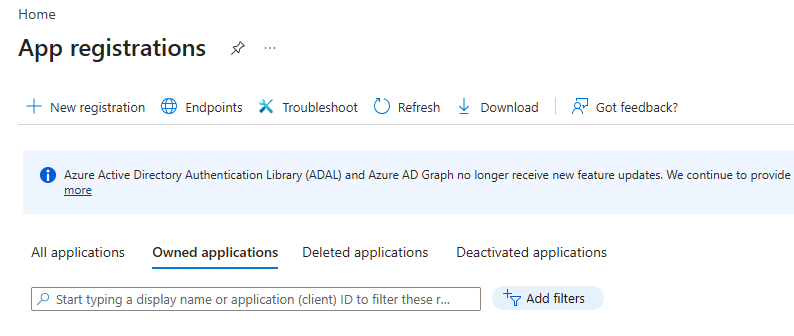
OpenAEV authenticates to the MDE API with the OAuth2 client credentials flow. Create an app registration in Microsoft Entra ID > App registrations > New registration, then collect:
- Directory (tenant) ID →
Azure tenant IDin OpenAEV - Application (client) ID →
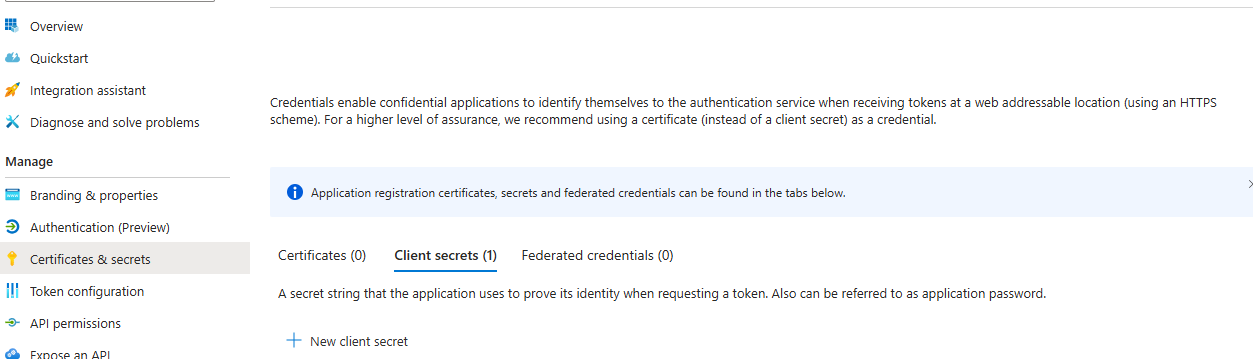
Client IDin OpenAEV - A client secret (
Certificates & secrets > New client secret) →Client secretin OpenAEV
Required API permissions
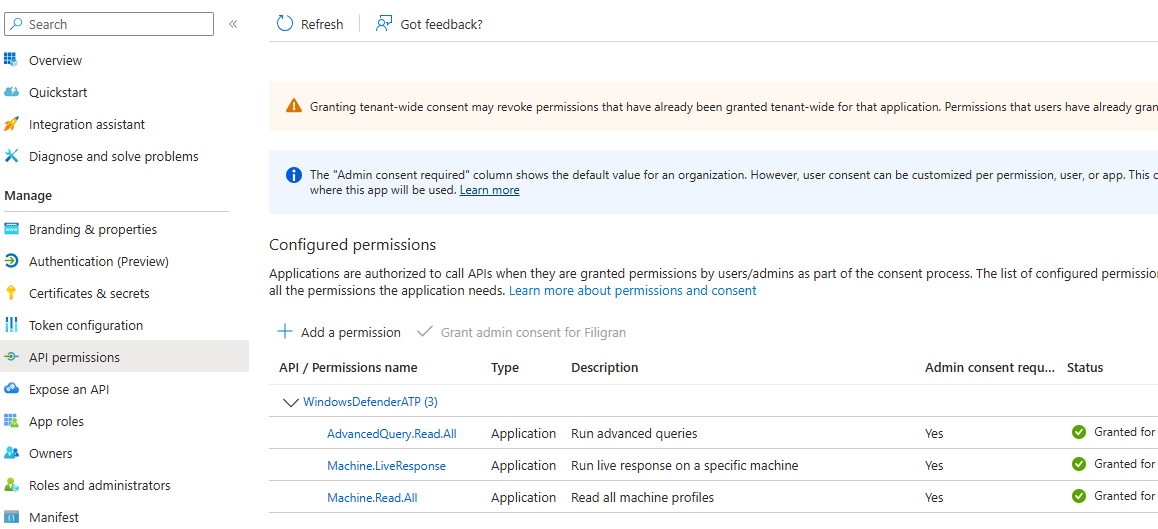
Under API permissions, add the following Application permissions for WindowsDefenderATP, then click Grant admin consent:
| Permission | Why |
|---|---|
Machine.Read.All |
List devices (and read their device-group name/id) and sync them into OpenAEV |
Machine.LiveResponse.All |
Run the Live Response script that launches the implant |
AdvancedQuery.Read.All |
Read near real-time device activity (Advanced Hunting) so only genuinely-reachable machines are marked active — the device inventory lastSeen lags by up to a day |
Application permissions (not delegated) are mandatory because OpenAEV runs without a signed-in user.
Enable Live Response in Microsoft Defender
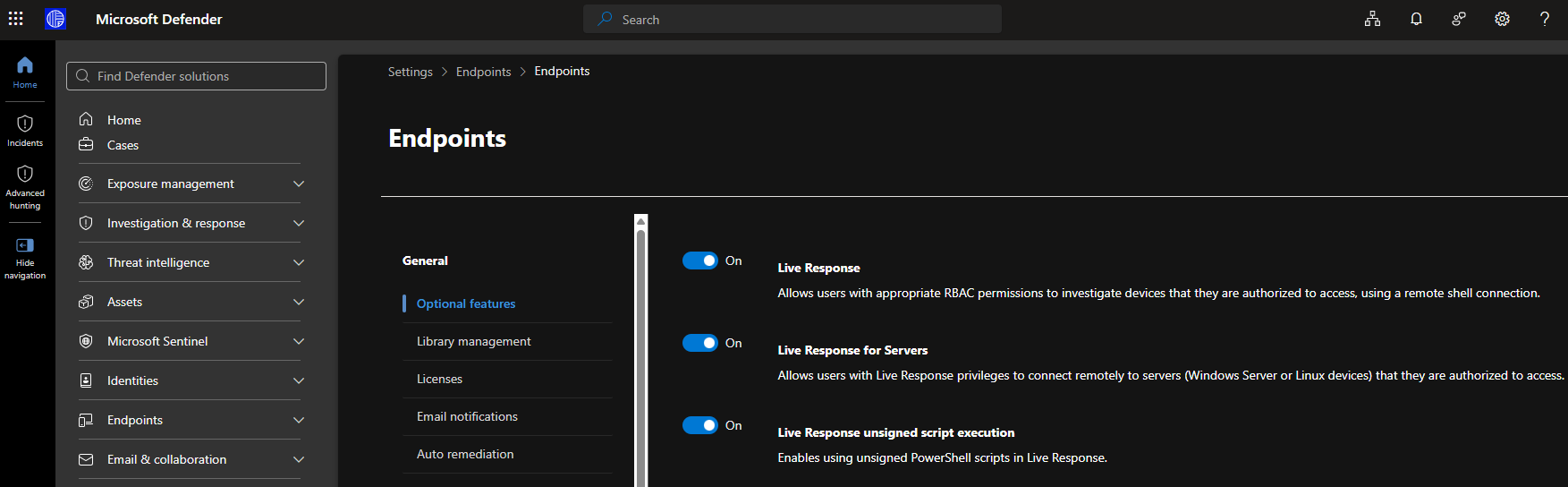
In the Microsoft Defender portal > Settings > Endpoints > Advanced features, enable:
- Live Response (required)
- Live Response for servers (only if you target Windows Server / Linux server endpoints)
- Live Response unsigned script execution (required — the OpenAEV subprocessor scripts are not code-signed)
Unsigned script execution
If Live Response unsigned script execution is disabled, every inject fails at the Live Response step because MDE refuses to run the OpenAEV subprocessor script. This is the single most common misconfiguration.
Upload the OpenAEV subprocessor scripts
Upload the two subprocessor scripts to the MDE Live Response Library (they decode the Base64 command sent by OpenAEV and execute it). The file names must match what you configure in OpenAEV (defaults below).
Windows script (openaev-subprocessor.ps1):
Unix script (openaev-subprocessor.sh, covers Linux and macOS):
How the scripts work
OpenAEV passes the full command as a single Base64 argument. The Windows script decodes it and runs it with
Invoke-Expression; the Unix script decodes it and pipes it to sh. Keep them as-is — reserved parameter names such
as param([string]$Args) will break argument passing on PowerShell ($args[0] must be used).
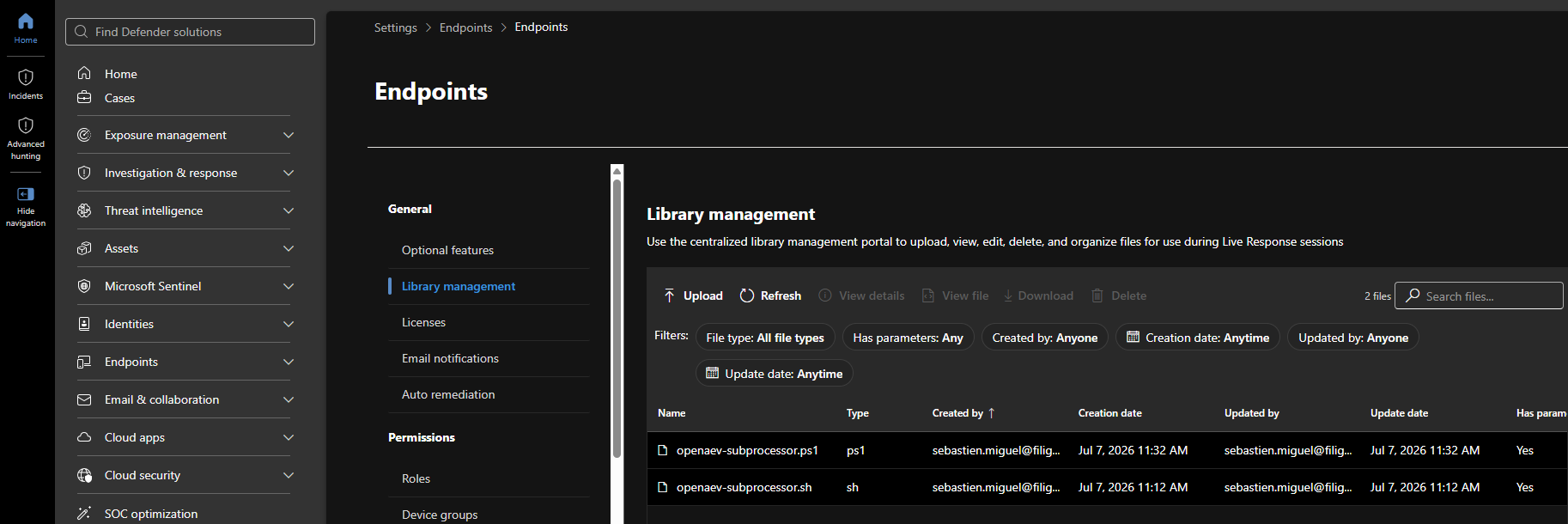
Tick Has parameters when uploading each script
In the upload dialog, enable the "parameters" option for both scripts. OpenAEV always invokes the subprocessor with the Base64 command as an argument; if parameters are not enabled, MDE runs the script without it and every inject fails. Both scripts must show Has parameters: Yes in the library.
Scope to a device group (optional)
To sync only a subset of devices, set the device group ID (rbacGroupId) in OpenAEV. Leave the field empty to
sync all devices.
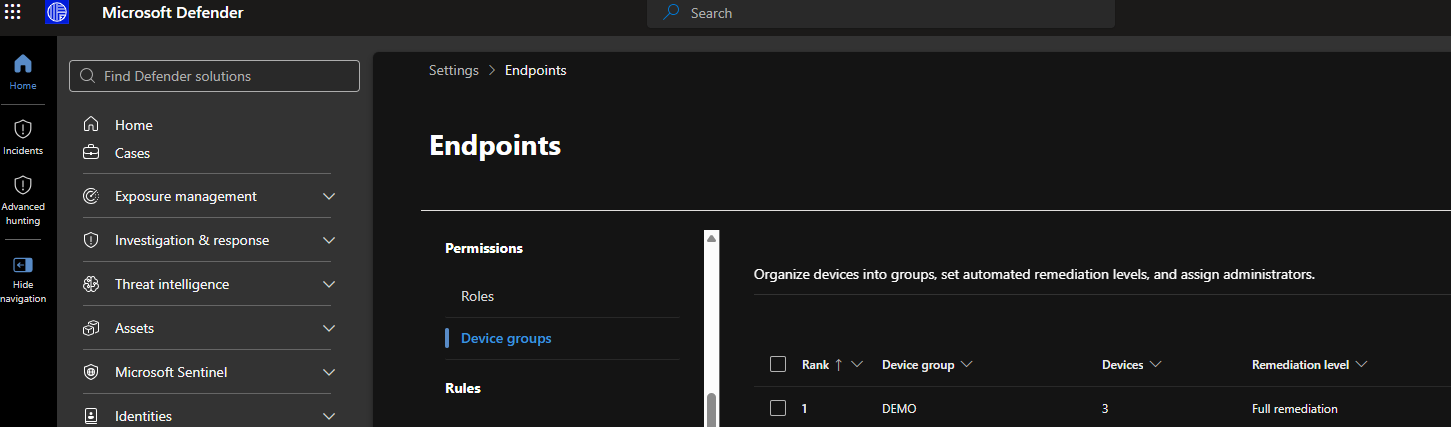
The numeric rbacGroupId is not shown in the Microsoft Defender UI
The Defender portal (Settings > Endpoints > Permissions > Device groups) shows device group names, not the
numeric rbacGroupId that OpenAEV needs. The MDE API also exposes no "list device groups" endpoint. The reliable way
to map a group name to its id is to read it from the machines inventory, which returns both rbacGroupName
and rbacGroupId for every device.
Run the following (PowerShell) against your tenant — it authenticates with the same Entra app registration and prints
the name → id mapping for every device group that has at least one machine:
$tenant = '<TENANT_ID>'
$client = '<CLIENT_ID>'
$secret = '<CLIENT_SECRET>'

$token = (Invoke-RestMethod -Method Post `
  -Uri "https://login.microsoftonline.com/$tenant/oauth2/v2.0/token" `
  -Body @{
    grant_type    = 'client_credentials'
    client_id     = $client
    client_secret = $secret
    scope         = 'https://api.securitycenter.microsoft.com/.default'
  }).access_token

$machines = Invoke-RestMethod `
  -Uri 'https://api.securitycenter.microsoft.com/api/machines?$select=rbacGroupId,rbacGroupName' `
  -Headers @{ Authorization = "Bearer $token" }

$machines.value |
  Select-Object rbacGroupName, rbacGroupId -Unique |
  Sort-Object rbacGroupName |
  Format-Table -AutoSize
Example output:
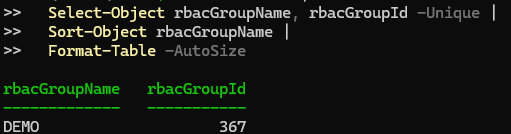
Here, syncing only the DEMO group means setting the OpenAEV Device group field to 367. Separate multiple IDs
with commas (for example 367,366). UnassignedGroup is the default group for machines not assigned to any custom
group.
The $select query above requires quoting
Keep the URI in single quotes so PowerShell does not interpret $select as a variable. The app registration
needs Machine.Read.All (already granted when you registered the application). A group appears only once it contains at least one machine that
MDE has seen.
Configure the OpenAEV platform
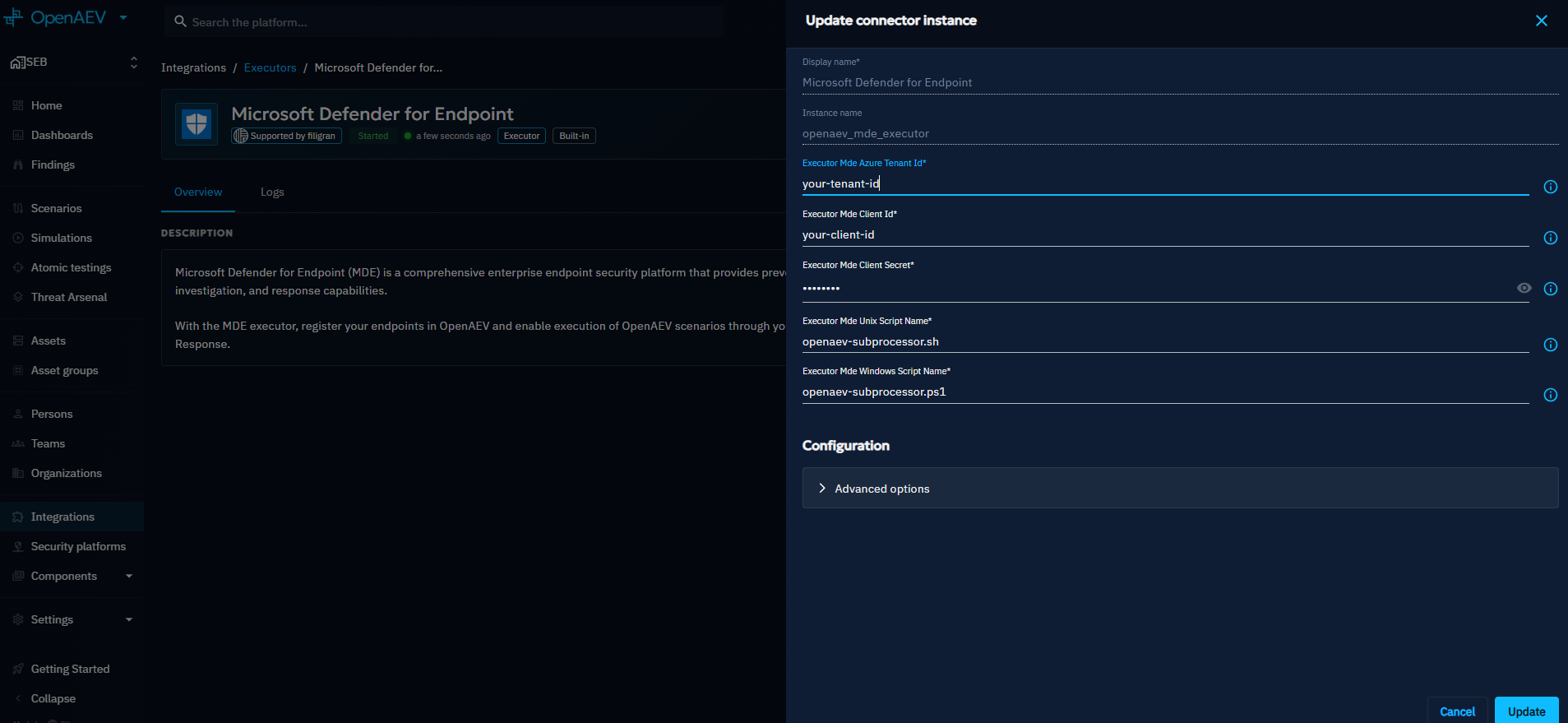
| Field | Required | Description |
|---|---|---|
| Azure tenant ID | ✅ | Directory (tenant) ID of the Entra app registration |
| Client ID | ✅ | Application (client) ID |
| Client secret | ✅ | Client secret value |
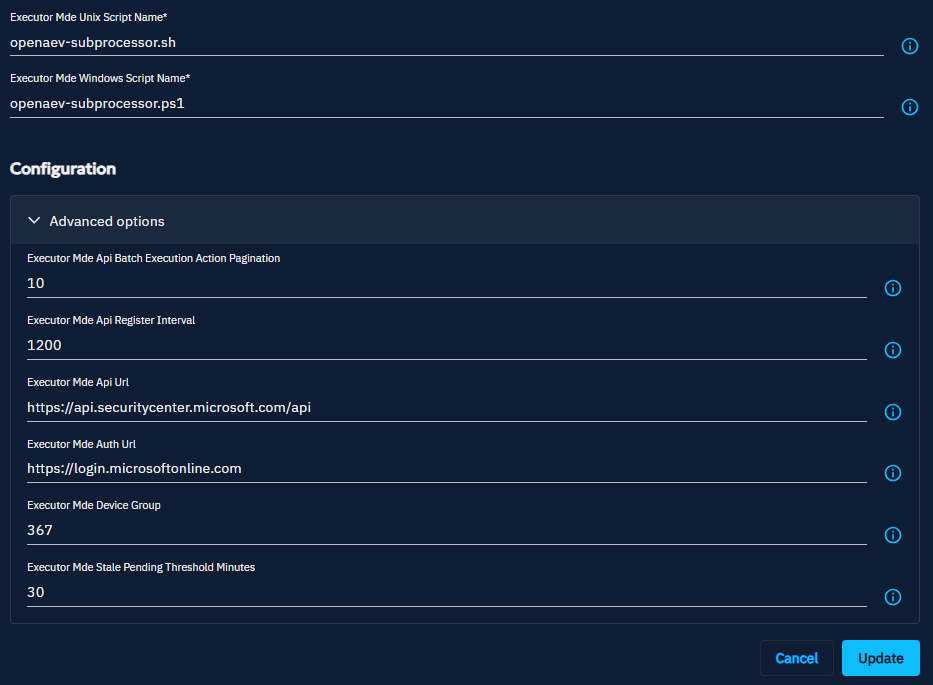
| Device group | ❌ | One or more rbacGroupId separated by commas. Empty = all devices |
| Windows script name | ✅ | Must match the uploaded Windows script (default openaev-subprocessor.ps1) |
| Unix script name | ✅ | Must match the uploaded Unix script (default openaev-subprocessor.sh) |
Advanced settings
Defaults rarely need changing: the API base URL (https://api.securitycenter.microsoft.com/api), the auth URL
(https://login.microsoftonline.com), the register interval (device/agent sync, default 1200s) and the Live
Response batch pagination (10 machines / 5s, the MDE rate limit is stricter than CrowdStrike).
Checks
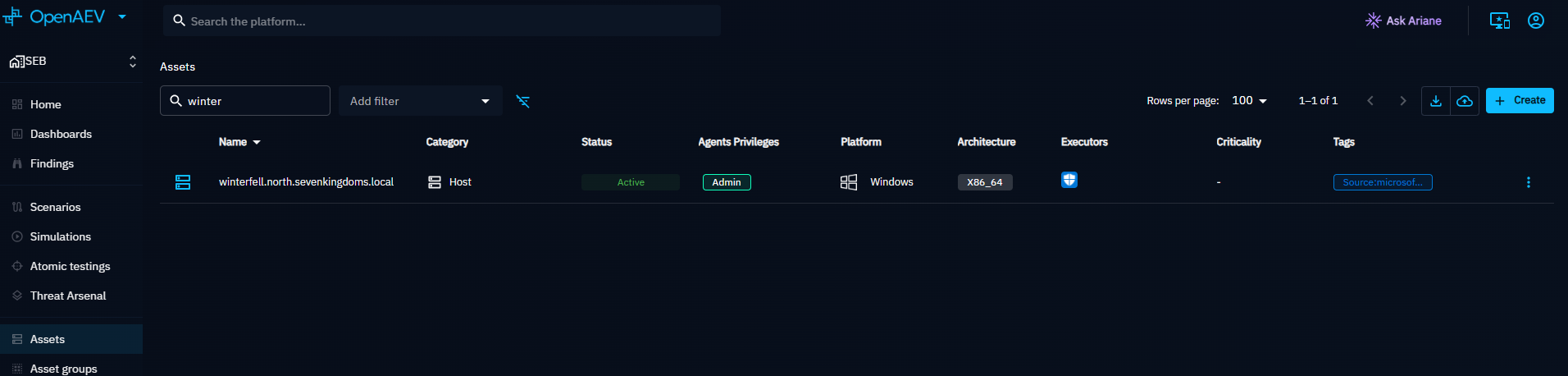
After the first sync, the devices of the selected device groups appear in OpenAEV. Only devices whose MDE onboardingStatus is Onboarded are synced.
How the agent active status is computed
At each sync, OpenAEV reads the latest activity of every device from Advanced Hunting, across the
DeviceInfo, DeviceEvents, DeviceNetworkEvents and DeviceProcessEvents tables. DeviceInfo alone is only a
snapshot written about once an hour, so it is not enough to tell whether a device is up.
- Activity within the tolerance (70 minutes plus one register interval, so 90 minutes with the default 1200 s): the agent is considered seen at the time of the sync, so its Last seen shows the time of the latest sync rather than the exact time of the last event.
- Older activity: Last seen keeps that real timestamp, and the agent turns inactive once it is more than one hour old.
With the default register interval, a device that goes offline is therefore shown as inactive within about two hours. A healthy device stays active between two syncs. Keep the register interval under one hour: the agent active threshold is one hour, so a longer interval lets any agent age out between two syncs.
Where to see executions on the Microsoft side
Each inject is an MDE Live Response action. You can review them in the Microsoft Defender portal:
- Assets > Devices > device > Timeline and the device Live response session log
- Action center > History, filtered on Action type = Live response / Source = API
- Advanced hunting (KQL (Kusto Query Language) on
DeviceProcessEvents) to see the scheduled task, the implant and the payload commands
Troubleshooting
Inject is ERROR but I have execution traces (stdout/stderr)
This is expected: the inject status reflects the payload's own exit code / stderr, not an executor failure. If the
payload command returns a non-zero exit code or writes to stderr (e.g. running net localgroup "Administrators" on a
non-English Windows, or a test designed to fail off-domain), the trace is marked ERROR even though the executor
delivered and ran it correctly. Check the stdout/stderr/exit_code in the execution trace to confirm.
Live Response fails immediately for every device
Verify Live Response unsigned script execution is enabled (see Enable Live Response), that both subprocessor scripts are in the
Live Response Library with the exact names configured in OpenAEV, and that the app registration has
Machine.LiveResponse.All with admin consent granted.
Devices are missing or show as inactive
OpenAEV filters devices by the configured device group, keeps only Onboarded devices, and marks
an agent active from near real-time Advanced Hunting activity (see "How the agent active status is
computed" above; the device inventory lastSeen lags by up to a day and is not reliable). If the app
registration lacks AdvancedQuery.Read.All, OpenAEV falls back to the sensor healthStatus and logs a
warning. Confirm the device group ID, that the machines are onboarded and reporting to MDE, and that
AdvancedQuery.Read.All is granted.
An Inject times out on a device that looks active
Live Response only runs while the Defender sensor is connected. On an offline device, the action stays Pending and the Inject times out. Check the action in Action center > History.
What's next?
- Executors -- Compare Executors, implant cleanup and troubleshooting
- Inject status -- Understand Inject results and timeouts